

Slide decks hold most of the onboarding, compliance and skills content HR and L&D teams own. Turning them into something people actually watch is the harder part.
I ran one onboarding deck through seven tools, comparing PPTX import, narration, presenters, slide fidelity, export speed and cost. The gap between them is wider than the marketing suggests, and it comes down to one question: does the tool export your slides, or does it rebuild them into something editable?
Key Takeaways
- Synthesia is the top pick for presenter-led training, with PPTX import, speaker-note narration and MP4 export
- Microsoft PowerPoint is simplest for licensed users recording their own narration
- Camtasia suits software walkthroughs that need detailed editing
- iSpring Suite is the only option here that reliably preserves PowerPoint animations
- VEED, Canva and Narakeet cover browser-based and low-cost workflows
At a glance
| Tool | Best for | AI narration | Animations survive | Pricing model |
| Synthesia | Presenter-led training | Yes, from speaker notes | No, slides become scenes | Free tier, then from around $18 to $29 monthly, capped by video minutes |
| Microsoft PowerPoint | Direct export, own voice | No | Yes | Included with Microsoft 365 |
| Camtasia | Software walkthroughs | No | Often need rebuilding | Paid licence, billed annually |
| iSpring Suite | Preserving slide effects | Limited | Yes | Annual, per author |
| VEED | Quick browser workflow | Yes | Limited | Freemium, tiered by plan |
| Canva | Simple edits and export | Yes | Limited | Free tier plus paid assets |
| Narakeet | Low-cost multilingual audio | Yes, from speaker notes | Limited | Pay-as-you-go credits |
Synthesia figures are taken from its published pricing page. Competitor pricing describes the charging model rather than a quoted rate, and all of it should be confirmed before purchase.
Three ways to do this, not seven
Before comparing tools, it helps to see that there are only three approaches and the seven products are variations on them.
PowerPoint’s own export turns slides into an MP4. You record narration and set timings yourself, animations survive, and there is no presenter or automated voiceover.
Generic online converters upload a .pptx and return a video file quickly. Formatting can shift, speaker notes are not narrated, and customization is thin.
Worth separating this from simple format conversion. Turning a deck into a static file with a PPT to PDF tool preserves the layout and nothing else, which is fine for distribution but does not make the content any more watchable. Video conversion is a different job with a different failure mode.
Slide-to-scene platforms rebuild each slide as an editable scene, convert speaker notes into narration and add presenters or translation. Animations do not survive, but everything downstream becomes editable.
Which approach you need depends almost entirely on whether somebody is available to record audio, and whether the deck needs to exist in more than one language.
How I tested
Every tool received the same 12 to 15 slide HR onboarding deck.
I scored PPTX import, animation fidelity, narration, presenters and MP4 export time, plus captions, translation and LMS export support. Where a claim came from the vendor rather than my own testing, I have said so.
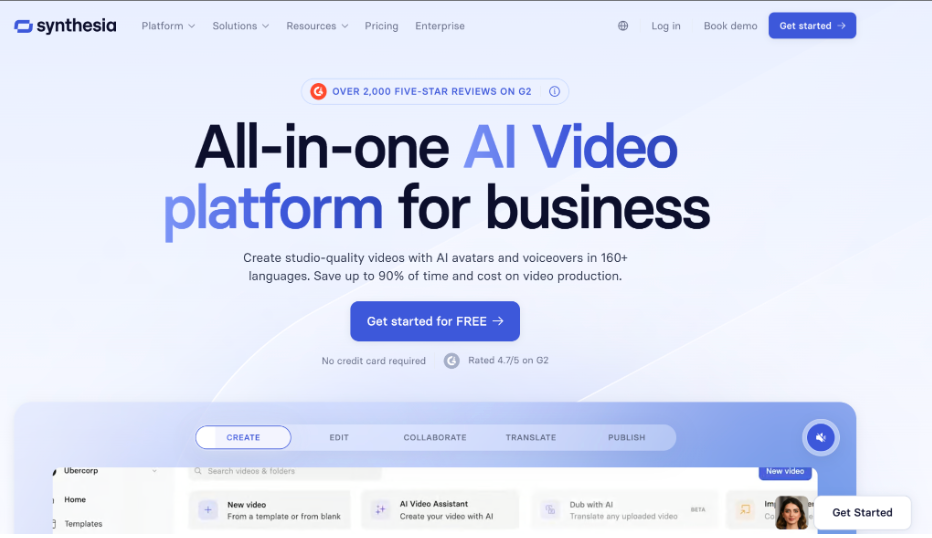
1. Synthesia
Pros
- Converts each slide into a fully editable scene rather than a flat frame
- Turns speaker notes into synced narration automatically
- Optional AI presenters, with 240+ avatars and 1000+ voices
- One-click translation into 160+ languages and accents
- Also handles PDF, DOC, DOCX and TXT, not just PPTX
- Brand kit, analytics and 60+ templates
Cons
- Animations and transitions do not carry across, since each slide becomes a static scene
- Lower plans cap monthly video minutes
- Some features sit behind higher tiers
My experience
Uploading the PPTX created editable scenes and pulled speaker notes straight into the narration field. Two toggles govern the import: one brings text, images, videos and shapes across as editable elements, the other converts speaker notes into script.
I added a presenter, rewrote one policy line and exported an MP4 without rerecording anything. Using PowerPoint to video as the starting point meant refining narration rather than building it, which is the practical difference from a straight export.
Localization was the standout. Translating the deck took a click rather than a second project, which matters if you are rolling the same compliance module across regions.
Worth knowing the limits. The app accepts files up to 1GB and a maximum of 150 slides. The free browser converter has a separate ceiling of 100MB, so a long deck needs the app rather than the web tool.
Pricing
There is a free tier that converts a deck end to end, with paid plans adding capacity and features. The number to watch is not the monthly fee but the video minute allowance, since self-serve tiers are metered by finished minutes rather than by number of videos.
Ten minutes a month is one ten-minute onboarding module or ten short clips, and Enterprise removes the cap entirely. Model your actual output before choosing a tier, because the per-minute economics decide this more than the headline price does. Synthesia reports use by more than 50,000 teams and over 90% of the Fortune 100, and holds 4.7 from 2,000-plus G2 reviews.
The customer numbers are more useful than the logos. Five Below reports saving $56,000 while producing over 100 custom videos, Moody’s describes work that took four hours now taking thirty minutes, and a Booz Allen Hamilton instructional designer describes updating 10,000 courses as newly feasible.
2. Microsoft PowerPoint
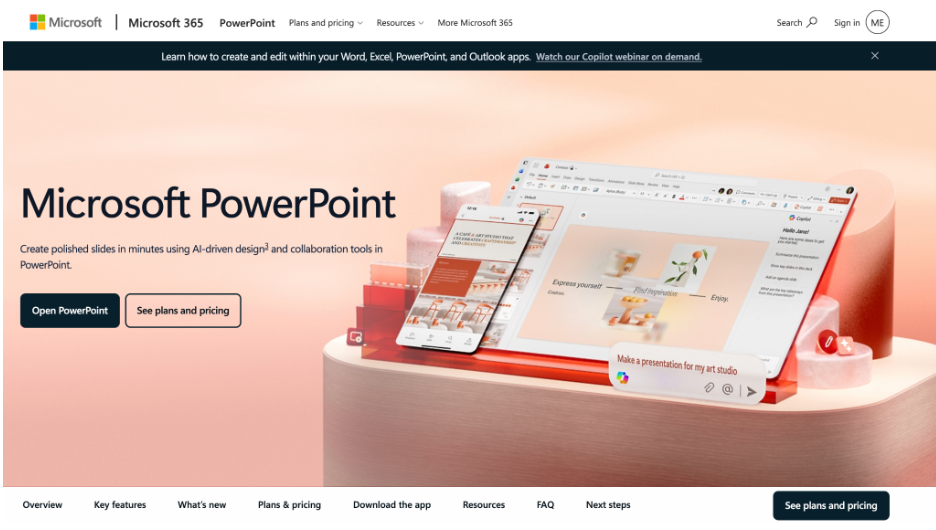
Pros: exports to MP4 or WMV, includes recorded narration and timings, supports up to Ultra HD 4K, familiar interface.
Cons: almost no post-export editing, no AI narration or presenters, all recording and timing is manual.
My experience
At 1080p my compliance deck matched Slide Show mode and kept recorded timings. Without timings, PowerPoint defaults to five seconds per slide, which is far too fast for dense policy text.
Pricing: no additional cost if your organization already holds the Microsoft 365 license.
3. TechSmith Camtasia
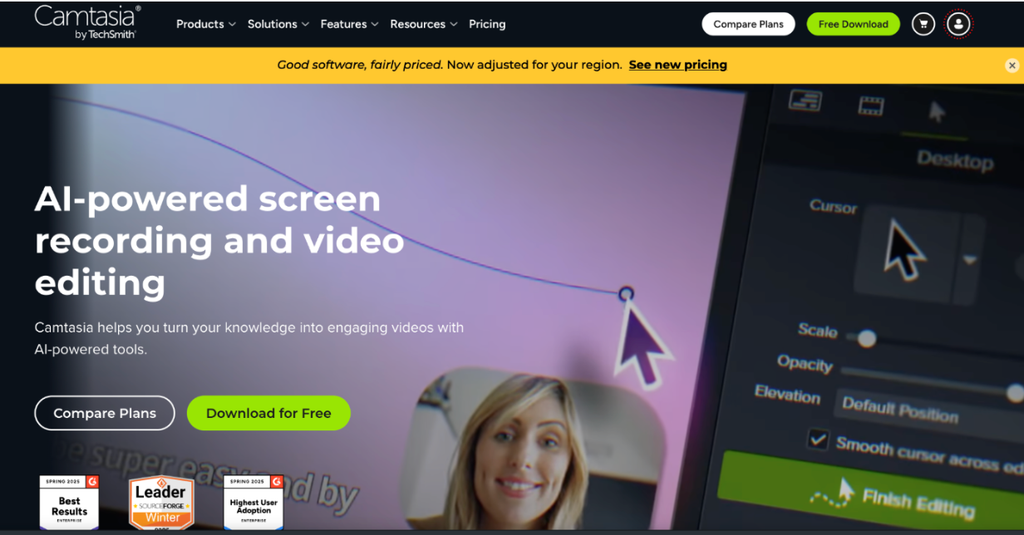
Pros: records live presentations or imports slides, timeline editing with callouts and captions, strong for software demonstrations.
Cons: the editor takes real time to learn, and slide animations often need rebuilding.
My experience
I recorded narration over the slides, trimmed dead air and added callouts. It took considerably longer than an automated conversion, but the result suited a software walkthrough better than any of the automated tools managed.
Pricing: billed annually. Check TechSmith’s store for current rates.
4. iSpring Suite
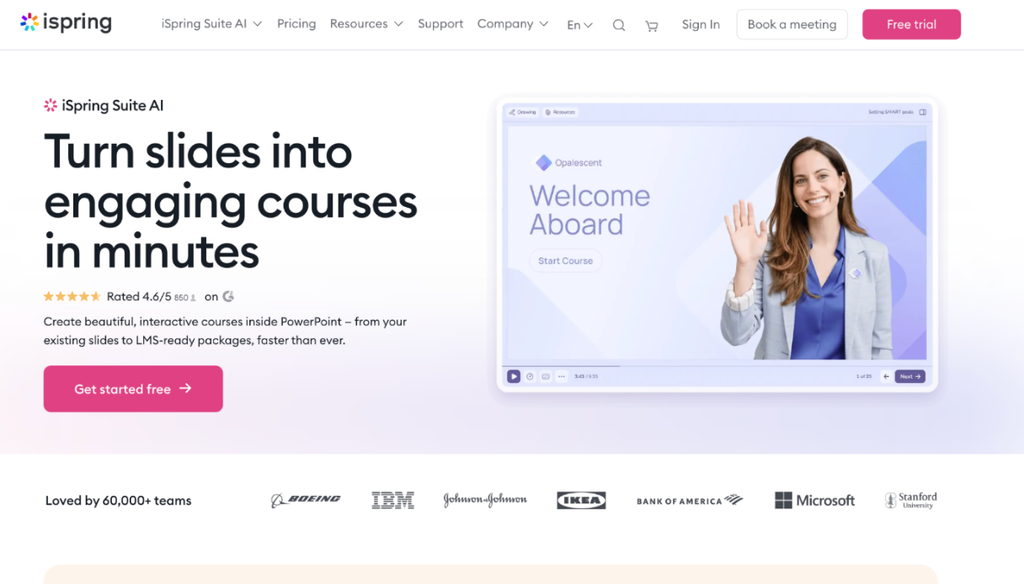
Pros: preserves PowerPoint effects in MP4 exports, works directly from a PowerPoint ribbon.
Cons: requires Windows and PowerPoint, and per-author pricing scales with team size.
My experience
Publishing kept my build animations and timings intact. If your deck depends on layered reveals, this was the most faithful option tested and the only one that did not flatten them.
Pricing: annual per author. Check current Suite rates.
5. VEED
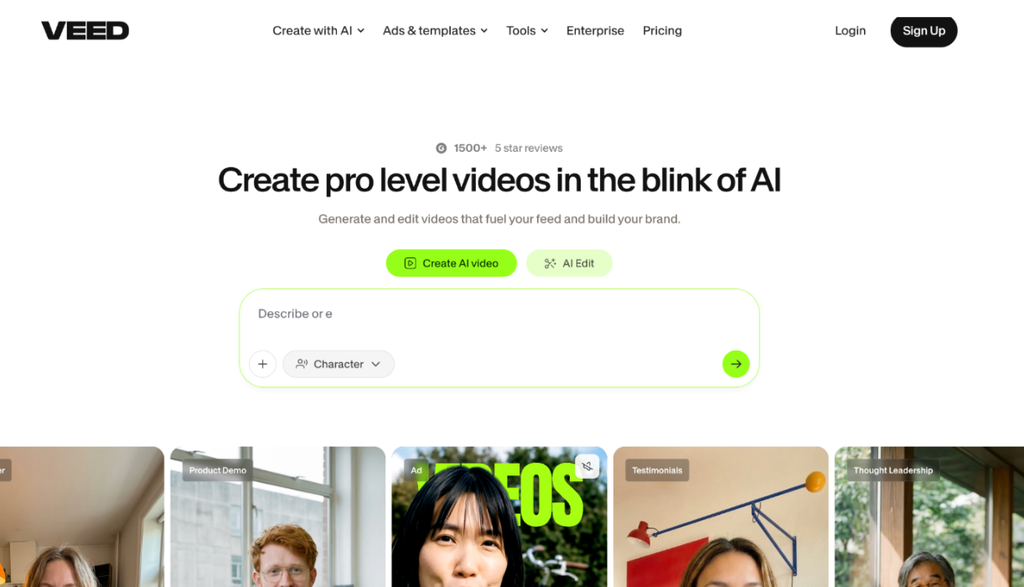
Pros: supports PPT, PPTX and PDF in a browser, adds scripts, subtitles and voiceover.
Cons: slide limits vary by plan, and advanced features sit on higher tiers.
My experience
I uploaded a PDF, generated narration and softened a few promotional lines. Quick, though long decks may need splitting.
Pricing: varies by plan. Check current rates.
6. Canva
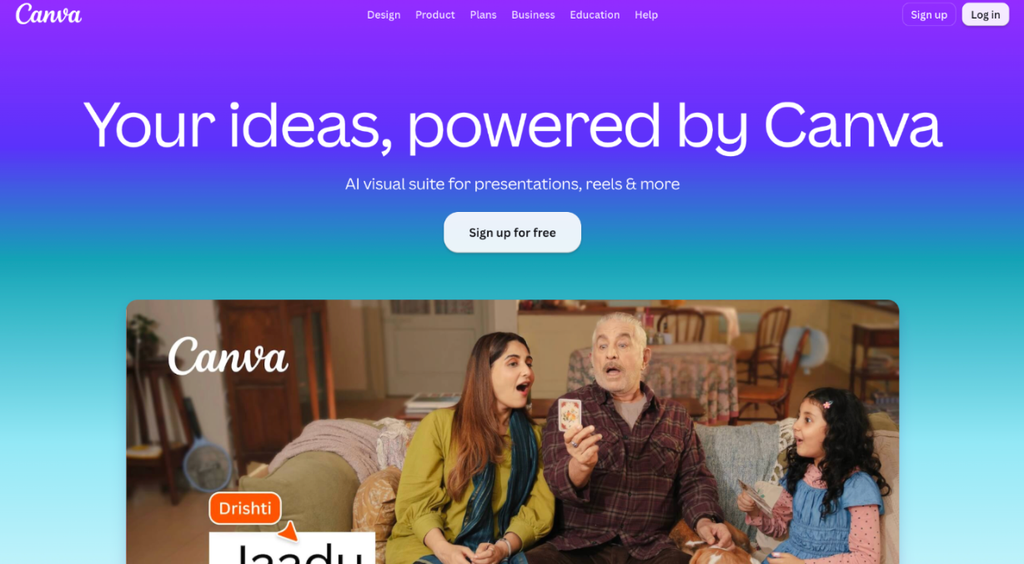
Pros: simple browser editor, recorded or generated narration.
Cons: limited timeline control, and imported layouts usually need cleanup.
My experience
I imported a PPTX, fixed font substitutions and recorded a voiceover. Export was fast, but timing control was the weakest here.
Pricing: the basic workflow is free, with some voices and assets paid.
7. Narakeet
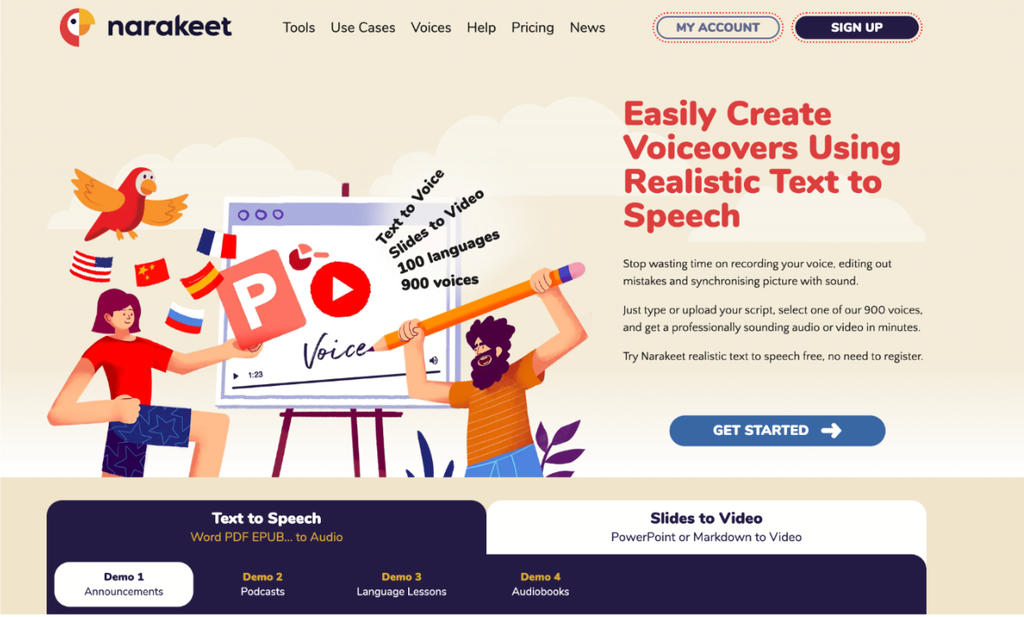
Pros: reads narration straight from speaker notes, wide voice and language range, pay-as-you-go credits.
Cons: utilitarian interface, and visual editing is minimal.
My experience
I uploaded a deck with speaker notes, chose a voice and rendered an MP4 without copying a script anywhere. It suits budget-conscious multilingual narration and little else.
Pricing: one-off credits plus limited free conversions.
How to choose
Three questions settle it faster than a feature comparison.
Do your animations carry the meaning? If layered reveals are how the content works, iSpring is the only tool here that keeps them. Everything else flattens slides into scenes or frames.
Who is recording the narration? If the answer is nobody, you need speaker-note conversion rather than a recording workflow. If a subject matter expert is happy to record, PowerPoint’s own export is free and sufficient.
There is a third option people forget. If you want one consistent narrator across a whole module library without booking studio time, voice cloning sits between the two, and several of the platforms here bundle it rather than requiring a separate subscription.
How many languages? One language makes this a tooling choice. Five makes it a budget one, and automated translation stops being a nice extra.
One more thing to weigh before committing. Converting a deck improves how the content is delivered, not whether the content was right in the first place. Research into why onboarding fails most new hires points consistently at what the programme contains and how it is followed up, rather than at production quality.
A better-looking module built on a weak deck is still a weak module. Fix the content first, then decide how to deliver it.
What it does not solve is follow-up. A converted deck is still one-way, so plan where people ask their questions before you decide how to deliver the content.
A word on output quality
Workflow comparisons rarely mention what the finished video looks like, and for anything published org-wide that is what gets a project cancelled.
Slide-to-scene conversion produces clean, on-brand output because it inherits your layout and fonts rather than re-rendering them. What it loses is motion, so a deck that relied on builds will feel flatter than the original unless you rebuild that movement in the editor.
Direct exports look exactly like your slideshow, which is either the point or the problem depending on your audience.
Conclusion
Synthesia is the strongest pick for HR and L&D teams turning existing slides into narrated, presenter-led training. Scene editing, speaker-note narration and one-click localization cover the whole path from deck to published video.
PowerPoint is the simpler runner-up for teams happy to record their own audio. Choose Camtasia for software walkthroughs and iSpring when preserving slide effects is non-negotiable.
FAQ
Do slide animations survive conversion?
Rarely. iSpring preserves PowerPoint effects, and PowerPoint’s own export keeps them within the video. Synthesia states plainly that animations do not transfer and each slide becomes a static scene, which you can then re-animate in its editor.
How can I add narration without recording myself?
Synthesia and Narakeet both read speaker notes and convert them into voiceover. VEED and Canva generate narration from a pasted script instead.
What file size and slide limits should I expect?
Synthesia accepts up to 1GB and 150 slides in the app, with a 100MB ceiling on its free browser converter. Other tools vary, and most browser-based converters cap slide counts by plan.
Can I export to an LMS?
Synthesia supports SCORM export on Enterprise plans, with all translated versions included. iSpring produces LMS-ready formats alongside MP4.
Is any of this free?
PowerPoint’s export costs nothing if you hold the license. Synthesia has a free tier that converts a deck end to end, Canva’s basic workflow is free and Narakeet offers limited free conversions.
How long does conversion actually take?
Automated conversion runs in minutes. The time cost sits in editing afterward, which is where tools that import slides as editable elements pull ahead of tools that export flat frames.